
Getting Started
1 Install PinoCast on your PC or Mac
PinoCast for Windows x64
Supports Windows 10 and 11
PinoCast for macOS
Supports Apple Silicon and Intel
2 Choose your connection method
Follow one of the connection guides below to learn how to set up the Camera to connect to PinoCast.
With Phone via USB
If you'd like the lowest latency, most reliable stream and have a USB cable with you, we strongly recommend using the USB connection method.
With Phone via WiFi
If portability is more your thing, then feel free to try WiFi connection.
With Local Webcam
If you already have a high definition camera, you can try this way. If you can connect a camera to your PC or Mac, PinoCast supports it.
Getting started with IOS Phone via USB
Let's get you up and running so you can start your stream! All going well, this will take less than 3 minutes.
1. Open Mobile phone USB-connection Interface
The first time you can click [Next] to open Mobile phone USB-connection Interface.
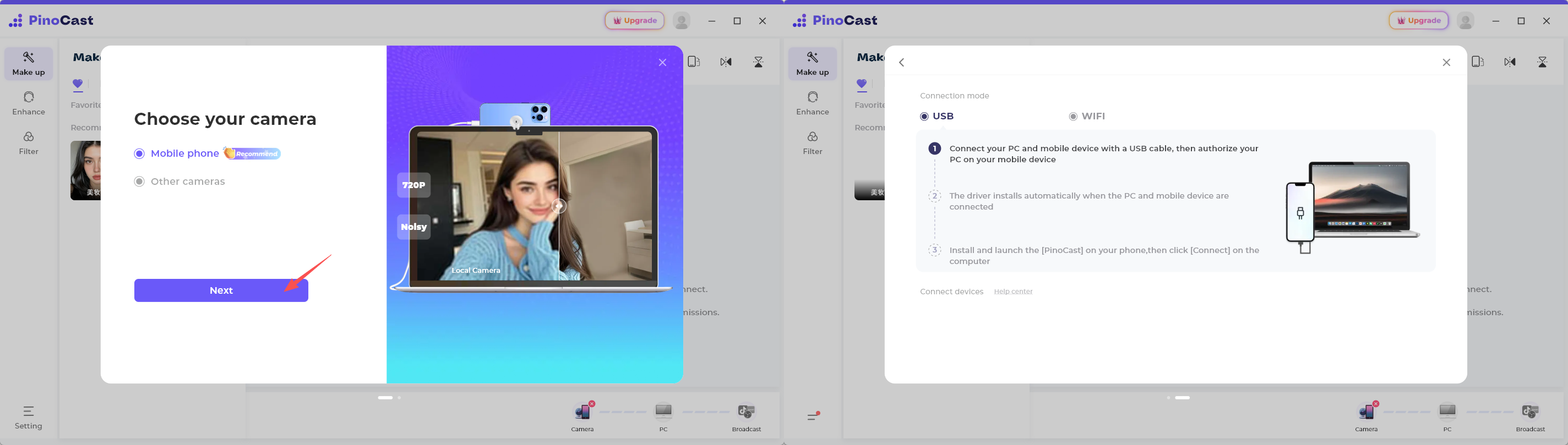
To add a new phone via USB later, click [Add Phone] in the device menu to enter the USB connection interface.
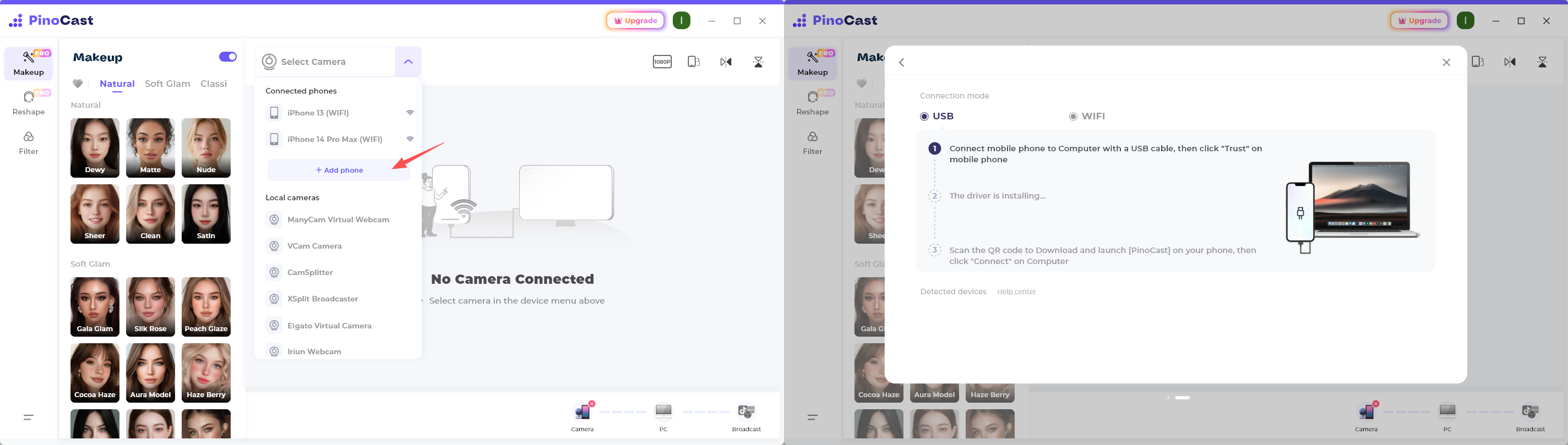
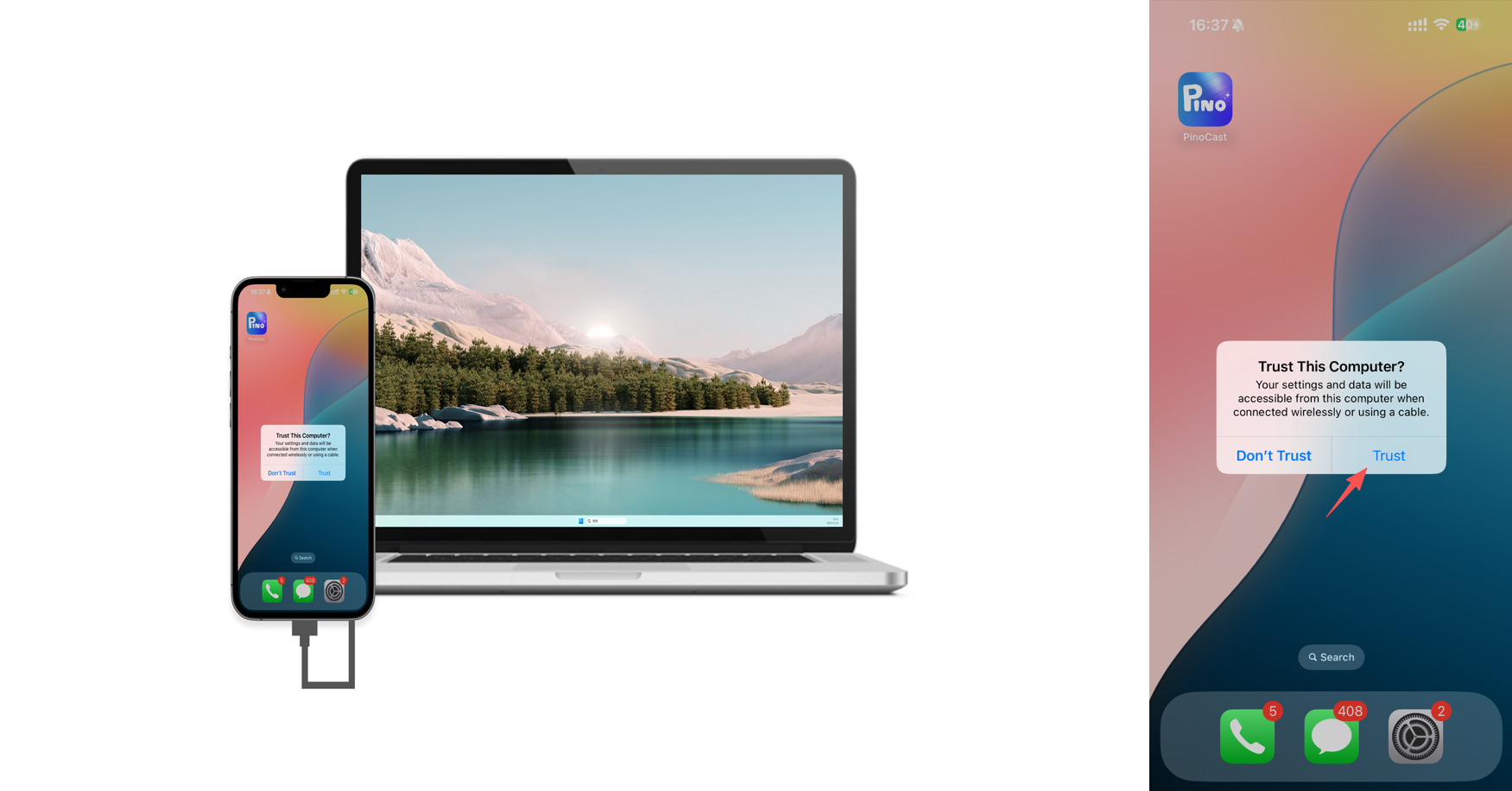
2. Connect iPhone to Computer with a USB cable.
3. The driver installs automatically when the Computer and iPhone are connected.Verify that the iPhone can be connected.
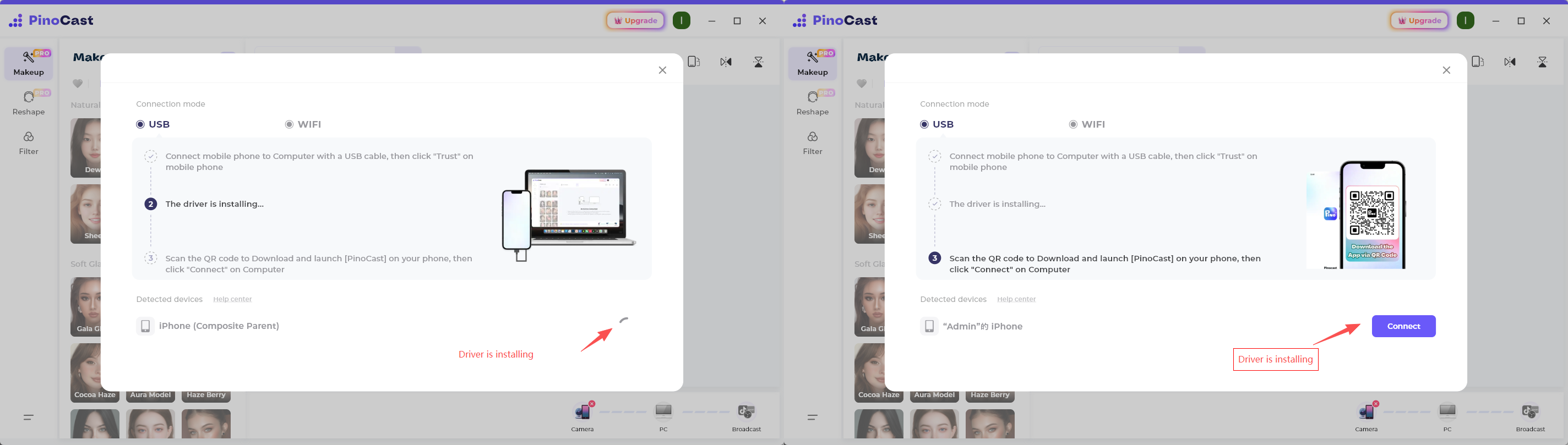
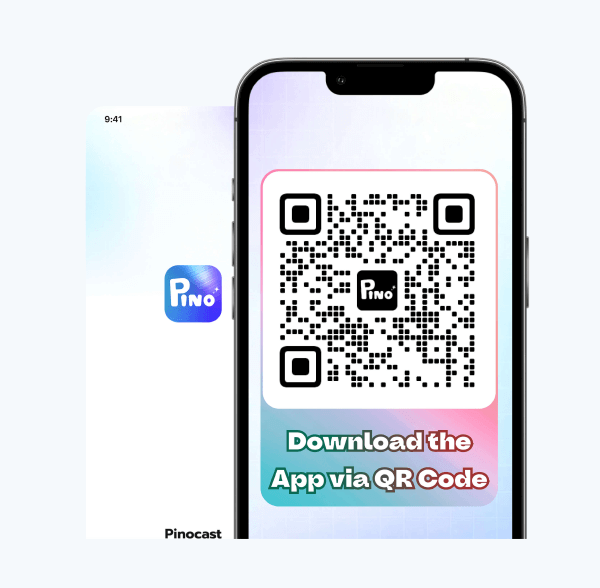
4. After the driver installation is complete, scan the QR code to download and launch [PinoCast] app on your iPhone.
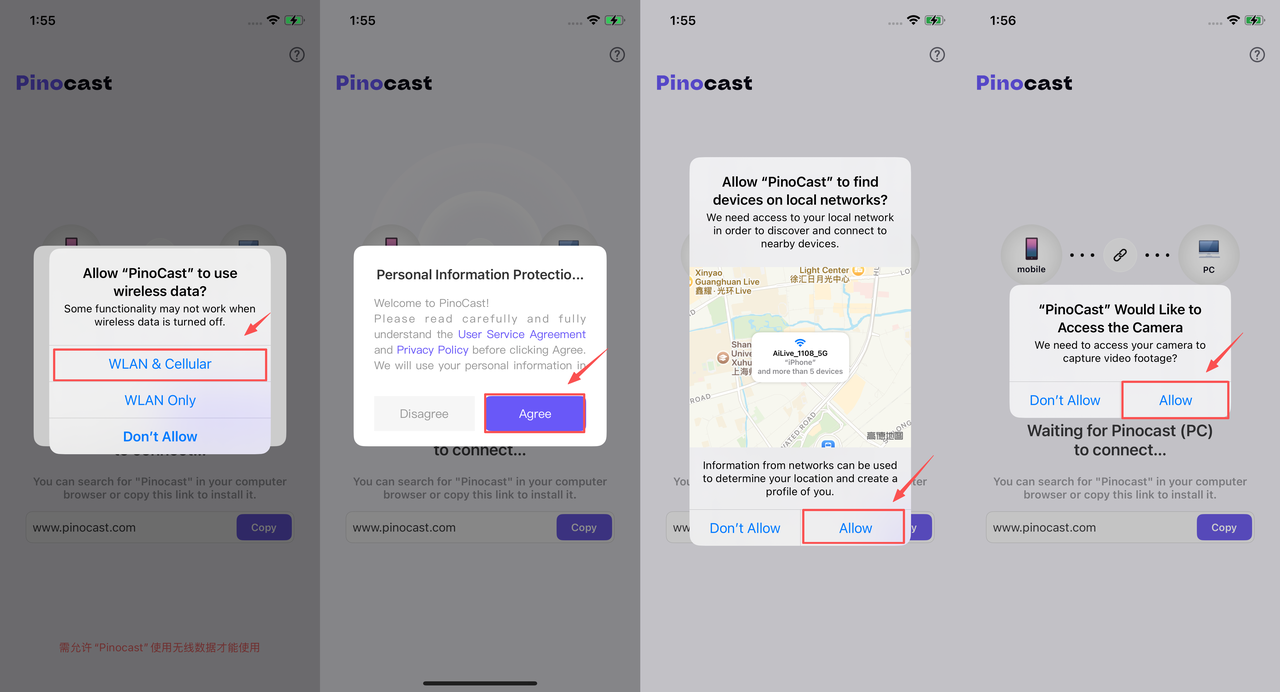
5. Lanuch [PinoCast] app and grant access to the following permissions to get started.
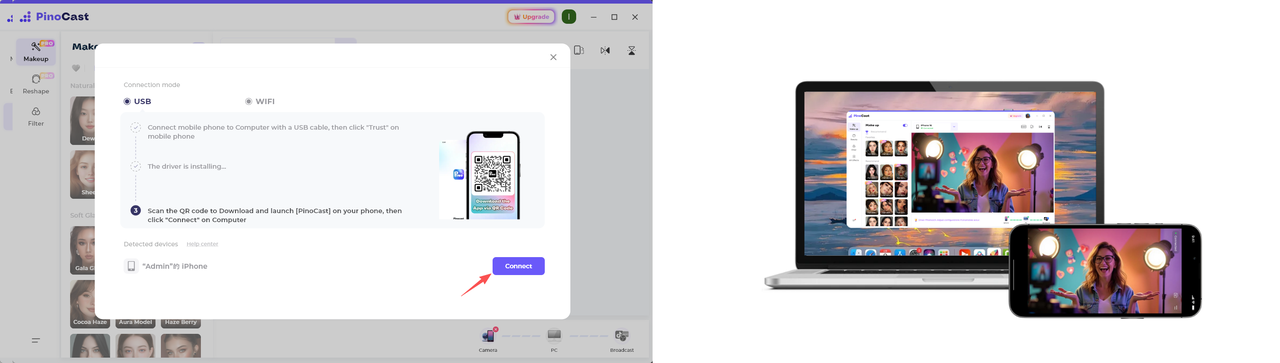
6. Click "Connect" on Computer.
Getting started with Android Phone via USB
Let's get you up and running so you can start your stream! All going well, this will take less than 3 minutes.
1. Open Mobile phone USB-connection Interface
The first time you can click [Next] to open Mobile phone USB-connection Interface.
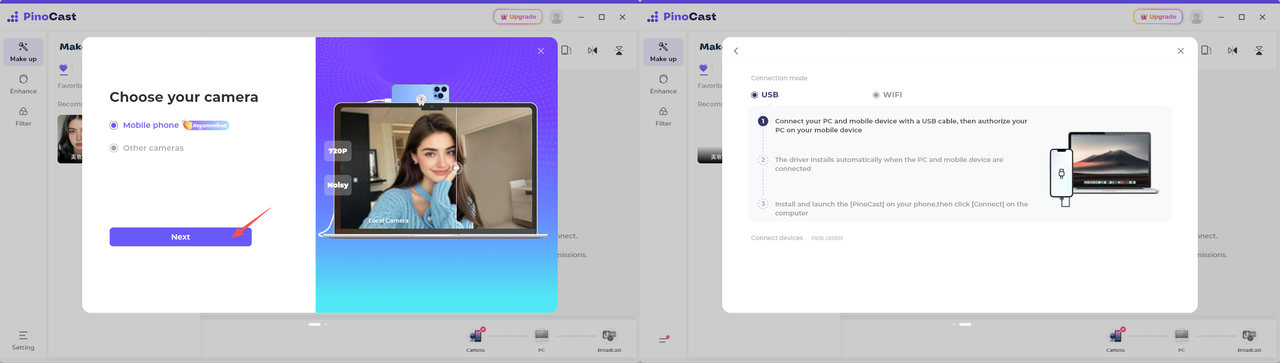
To add a new phone via USB later, click [Add Phone] in the device menu to enter the USB connection interface.
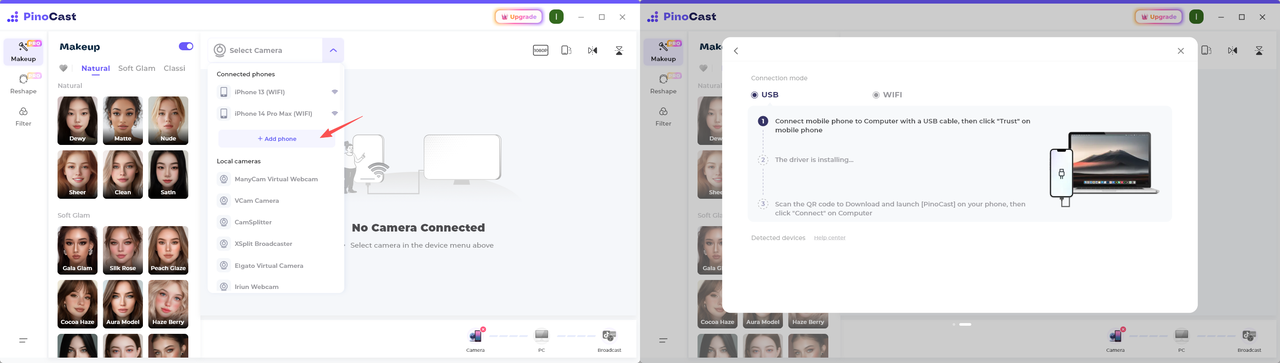
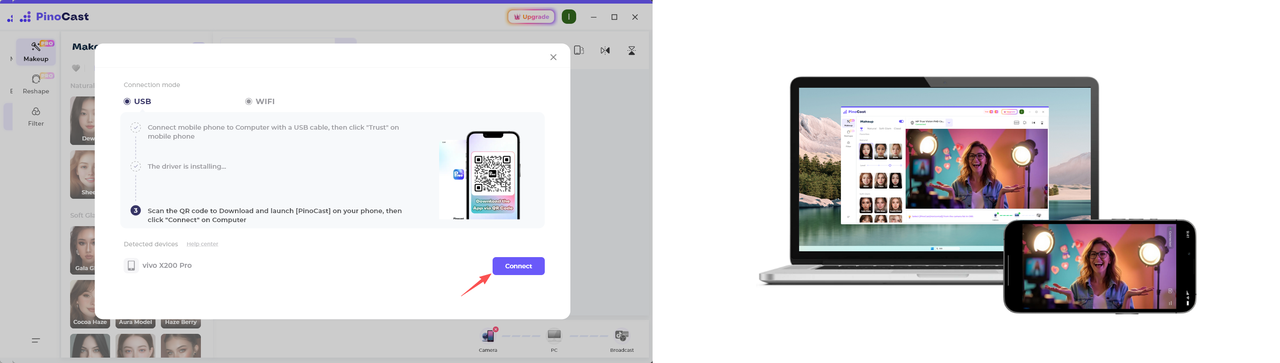
2. Connect Android Phone to Computer with a USB cable.
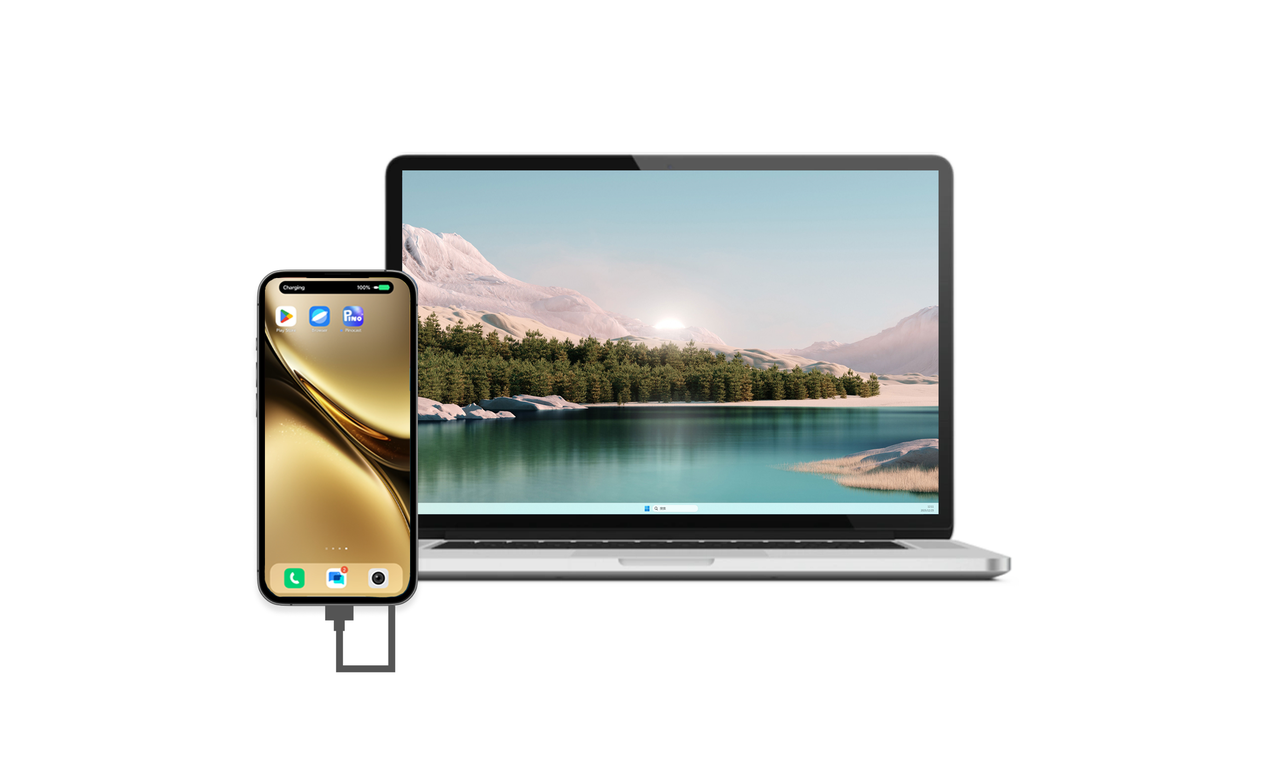
3. The driver installs automatically when the Computer and Phone are connected.Verify that the Phone can be connected.
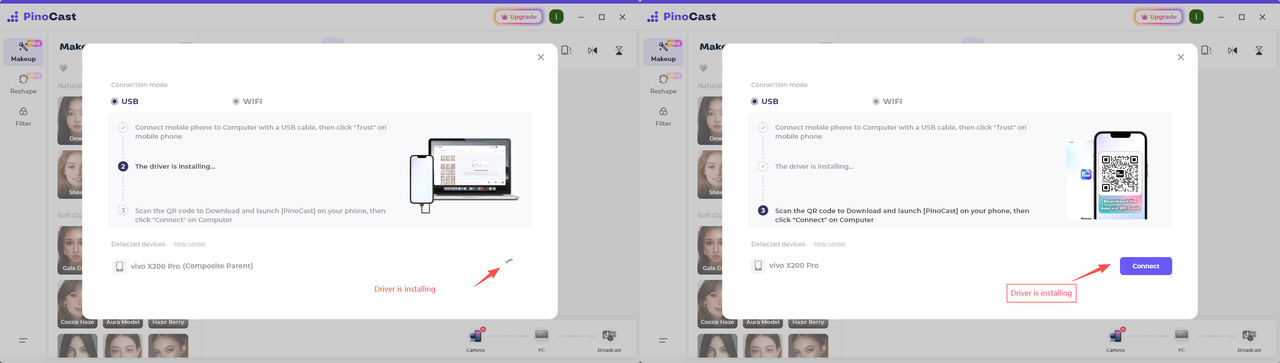
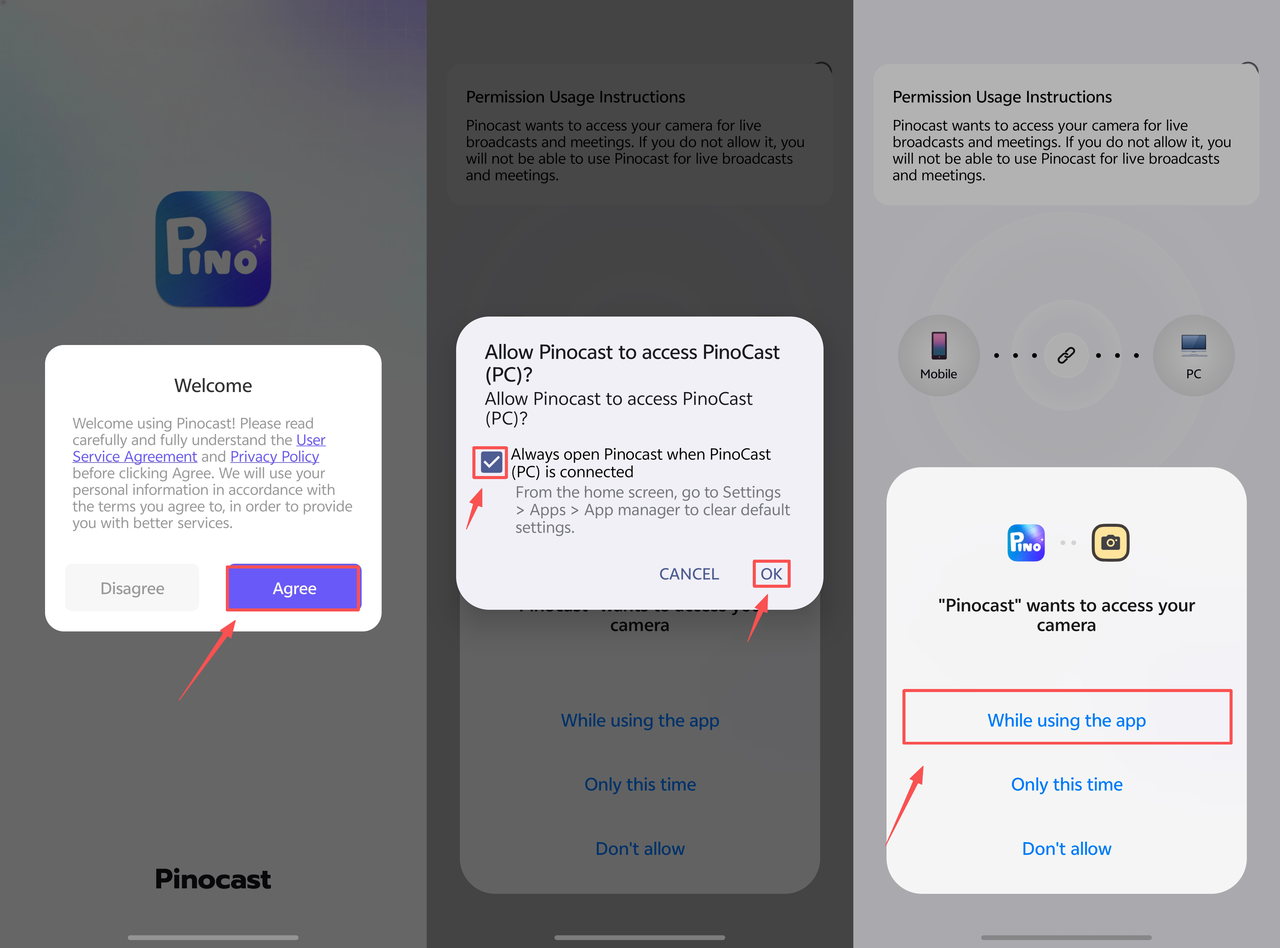
4. After the driver installation is complete, you can click [VIEW] on phone or scan the QR code to download [PinoCast] app.
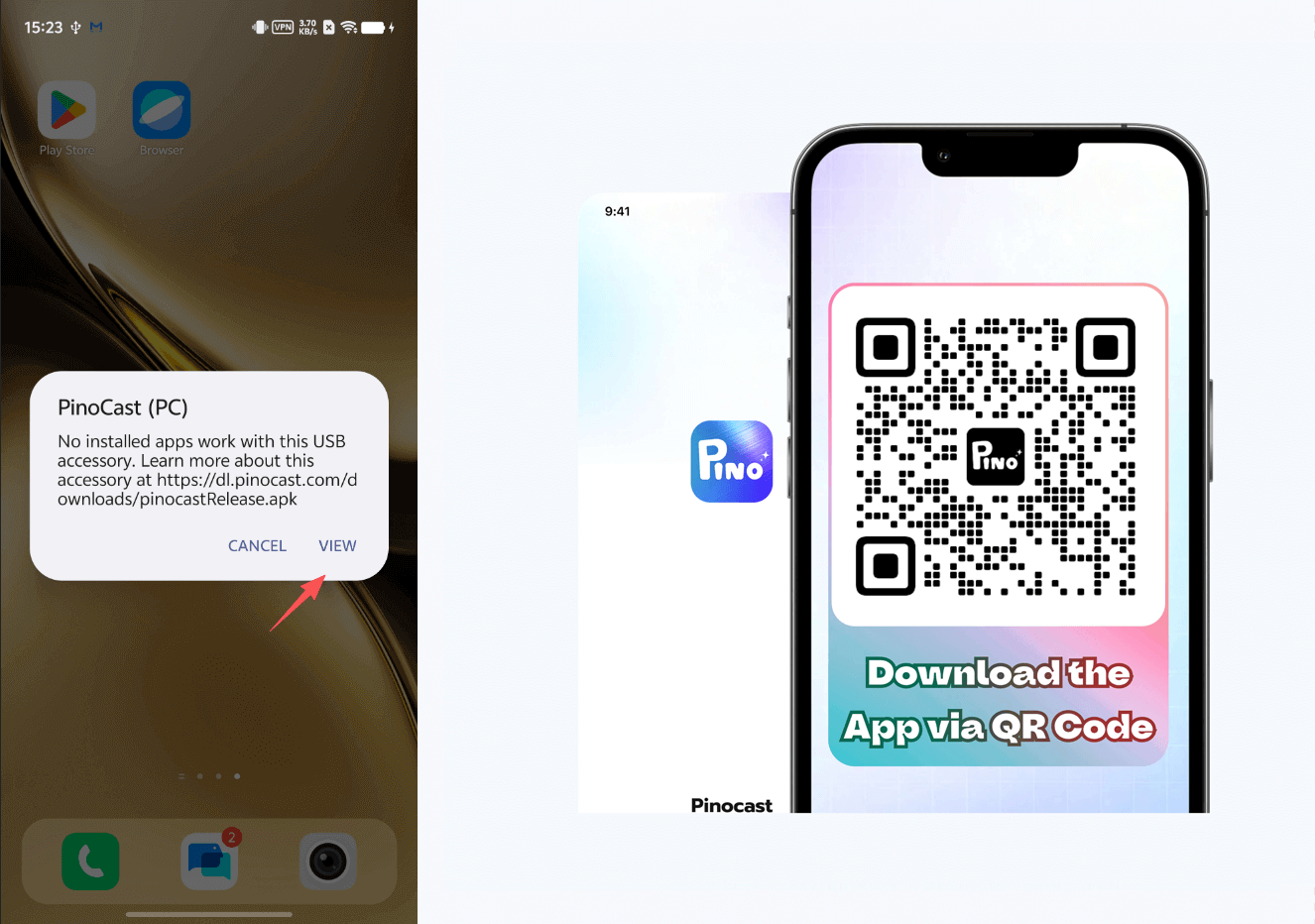
5. Lanuch [PinoCast] app and grant access to the following permissions to get started.
6. Click "Connect" on Computer.
Getting Started with IOS Phone via WiFi
Getting Started with Phone via WiFi is more convenient. As long as the computer and phone are in the same Wi-Fi, they can be easily connected.
1. Open Mobile phone WiFi-connection Interface
The first time you can click [Next] to open Mobile phone WiFi-connection Interface.
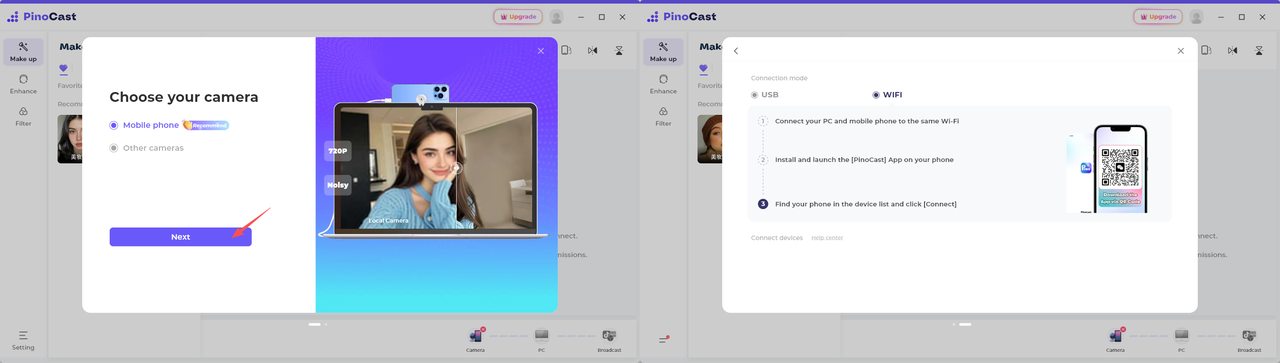
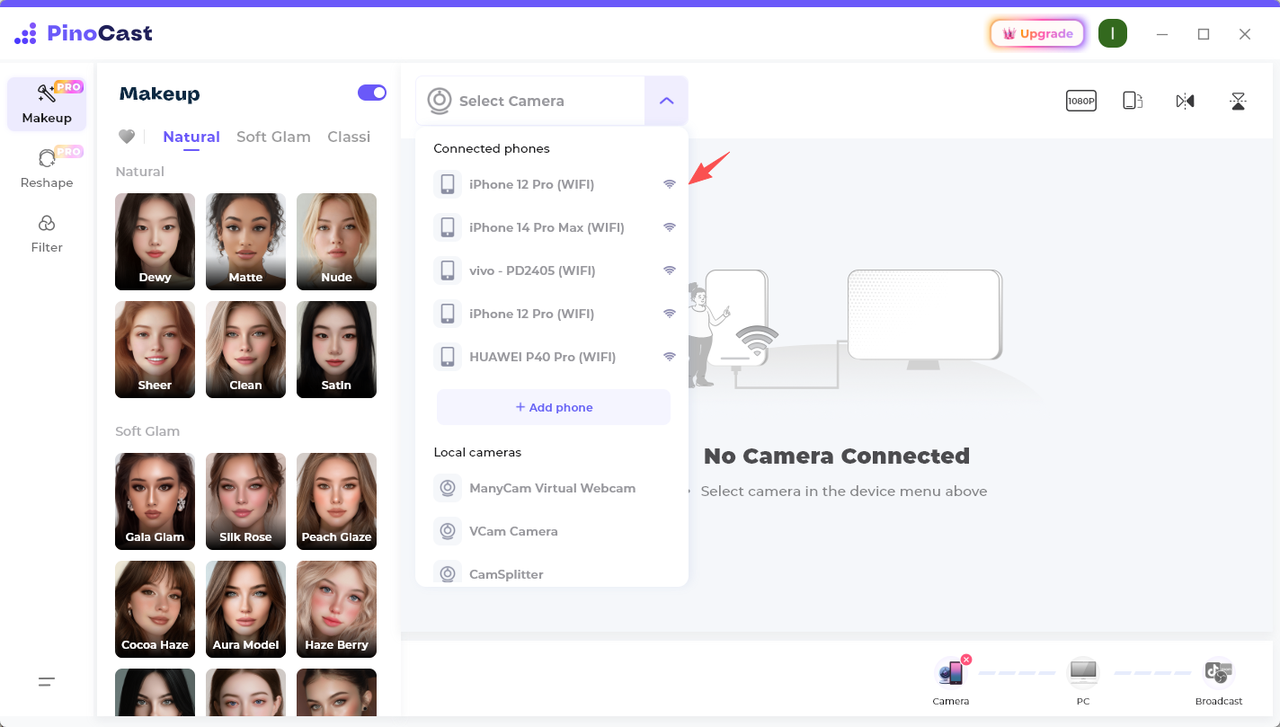
To add a new phone via WiFi later, you can open [pinocast] app on your phone first then click your new phone in the device menu.
2. Make sure mobile phone and Computer are connected to the same Wi-Fi
3. Scan the QR code to Download [PinoCast] app on your phone
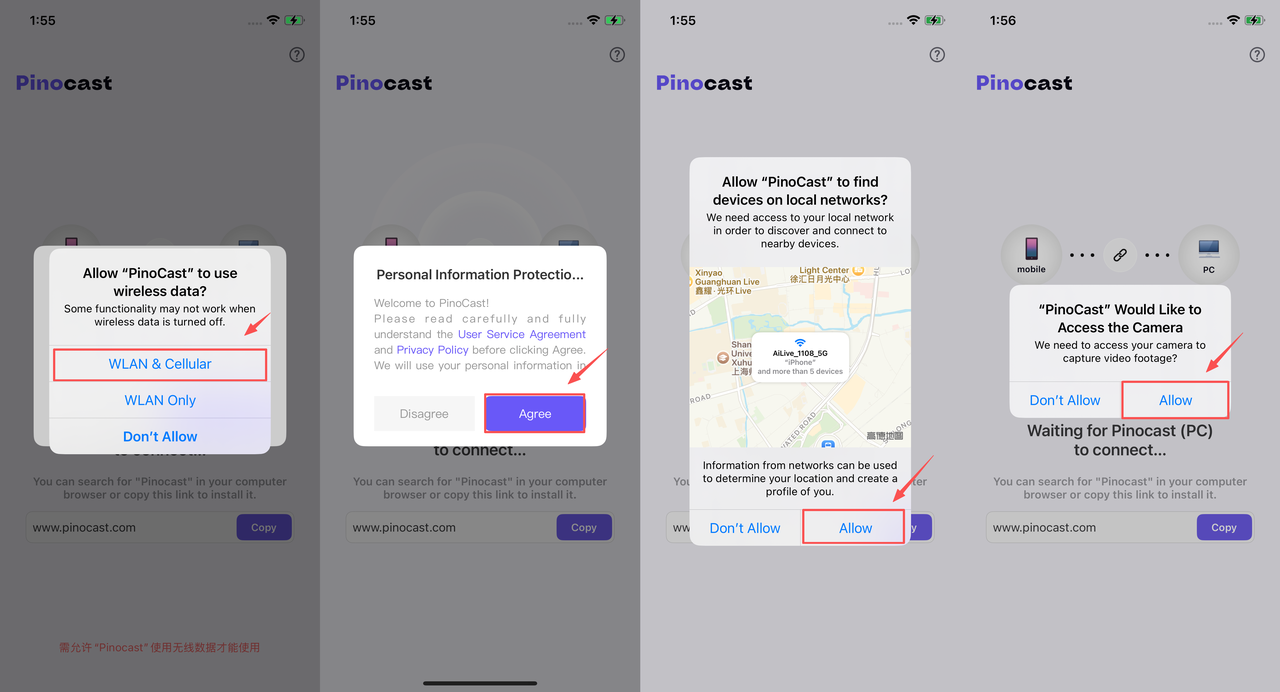
4. Lanuch [PinoCast] app and grant access to the following permissions to get started.
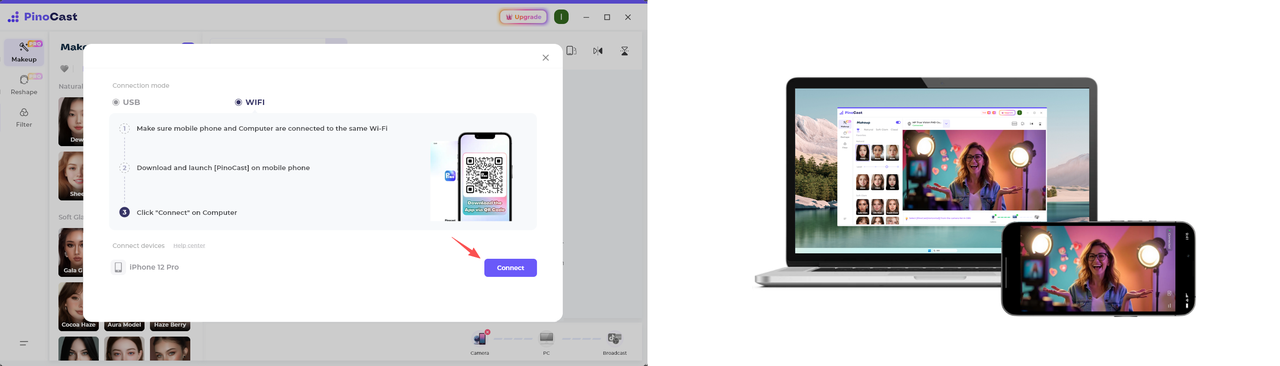
5. Click "Connect" on Computer.
Getting Started with Android Phone via WiFi
Getting Started with Phone via WiFi is more convenient. As long as the computer and phone are in the same Wi-Fi, they can be easily connected.
1. Open Mobile phone WiFi-connection Interface
The first time you can click [Next] to open Mobile phone WiFi-connection Interface.
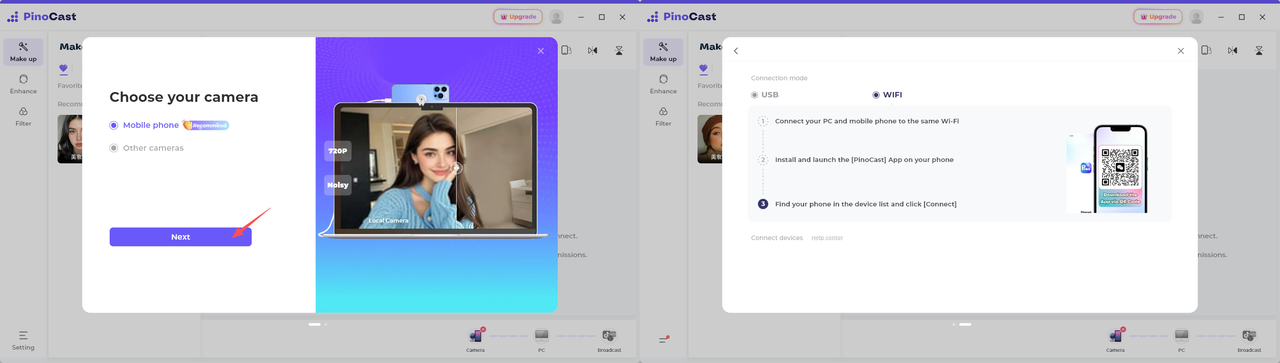
To add a new phone via WiFi later, you can open [pinocast] app on your phone first then click your new phone in the device menu.
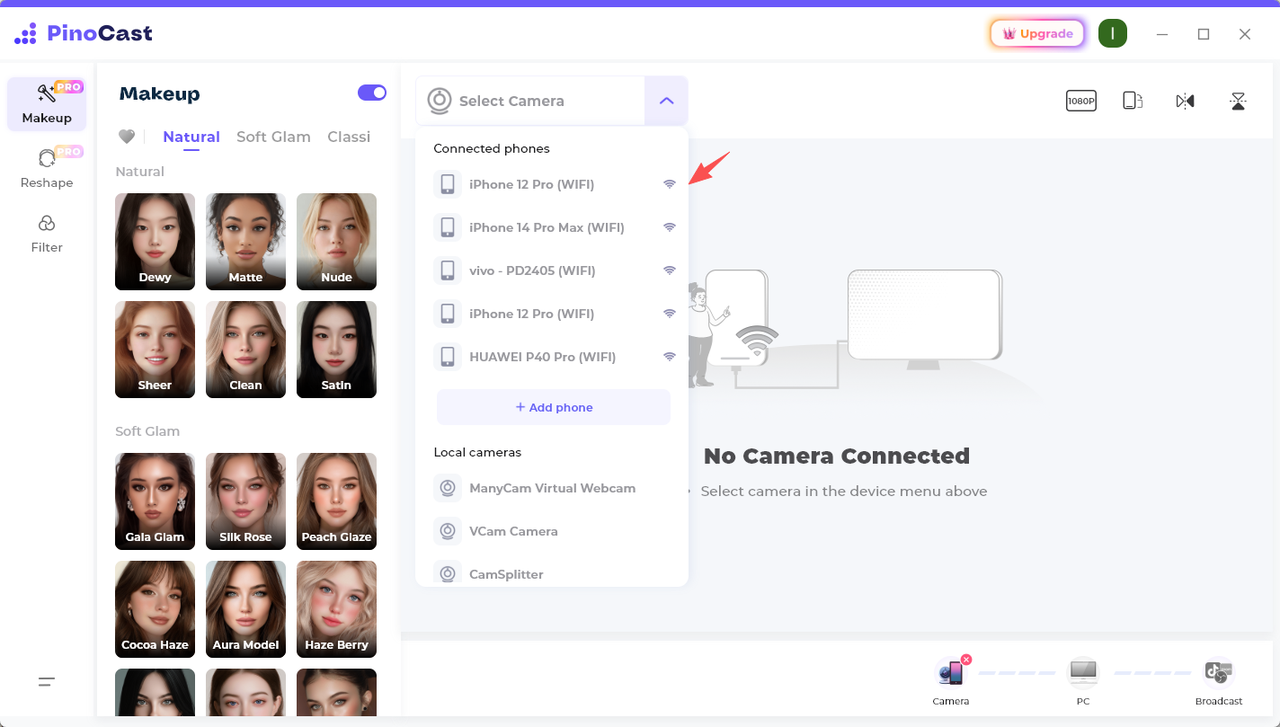
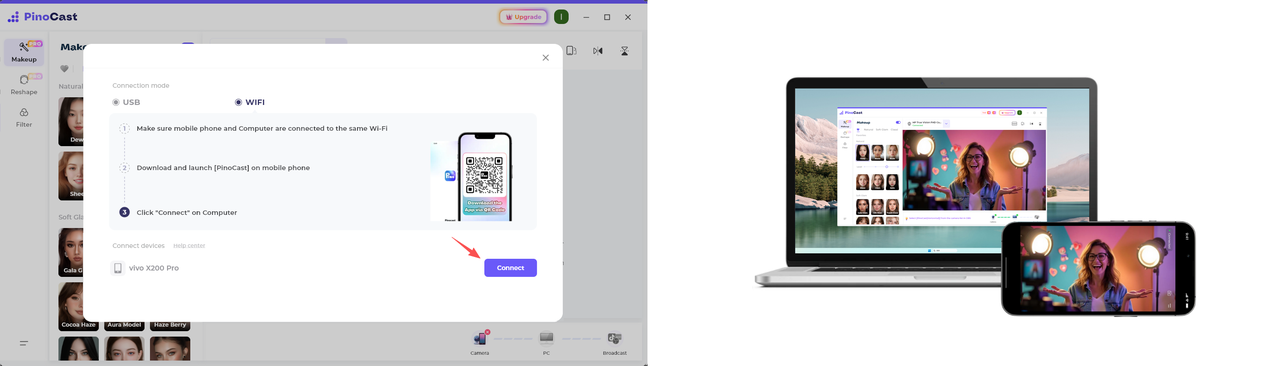
2. Make sure mobile phone and Computer are connected to the same Wi-Fi
3. Scan the QR code to Download [PinoCast] app on your phone
4. Lanuch [PinoCast] app and grant access to the following permissions to get started.
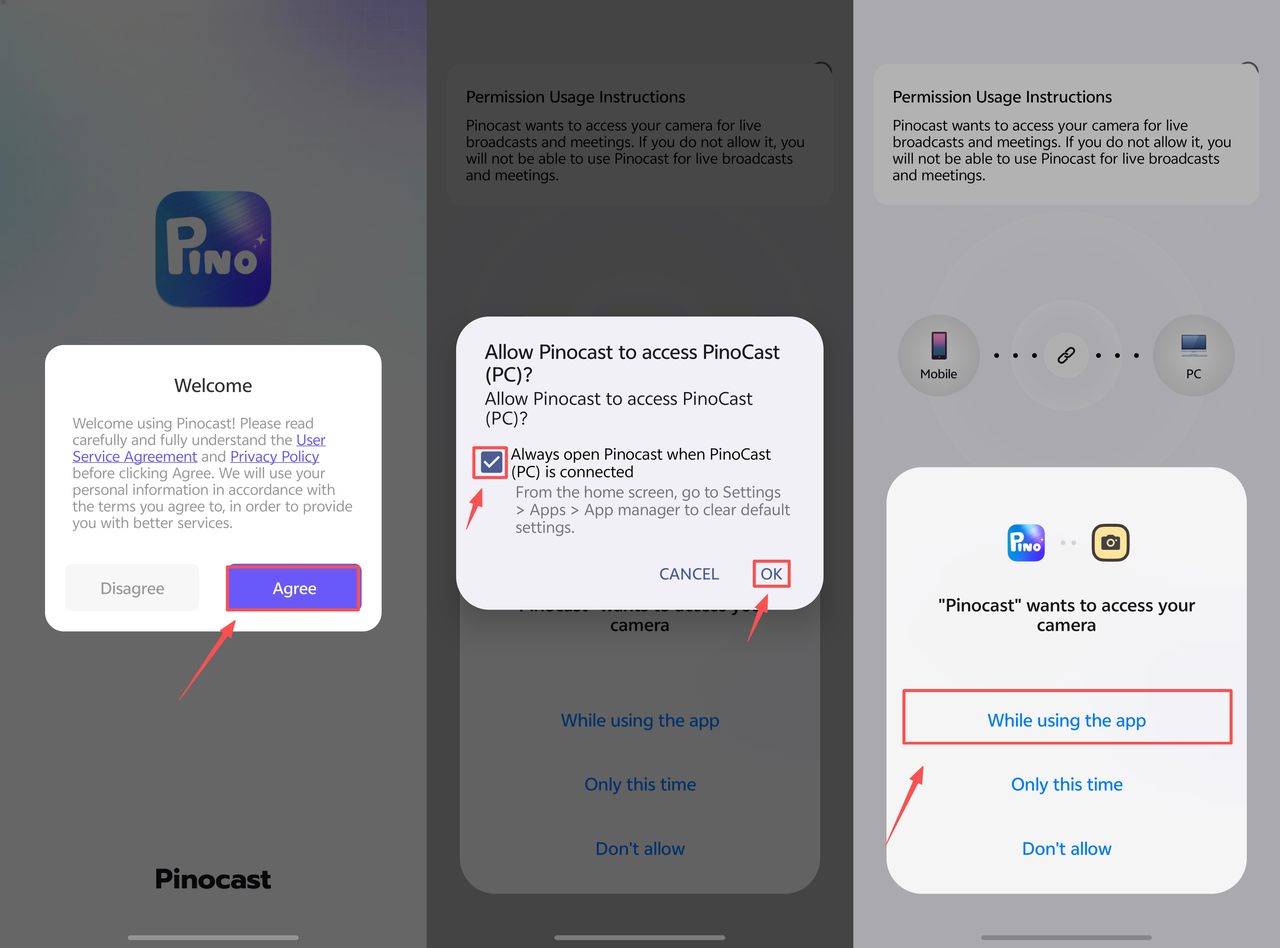
5. Click "Connect" on Computer.
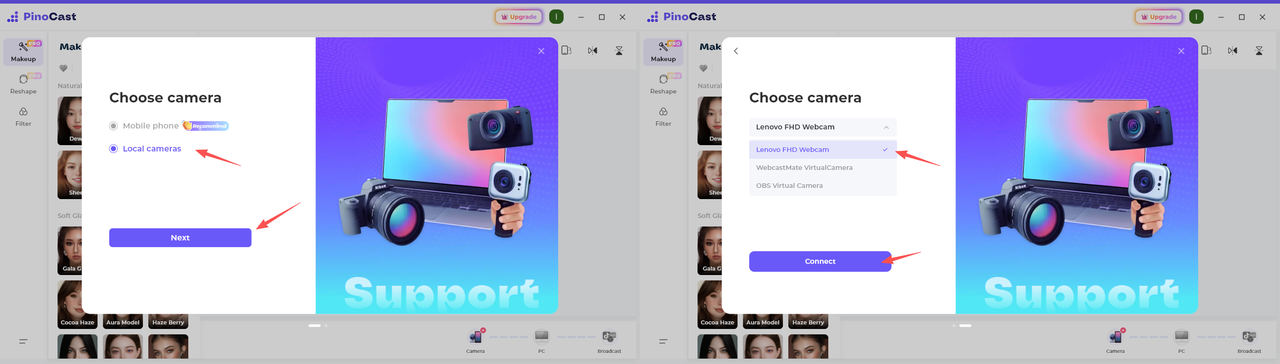
Getting Started Local Webcam
The first time you can click [Other cameras] to choose Local webcam you want to connect.
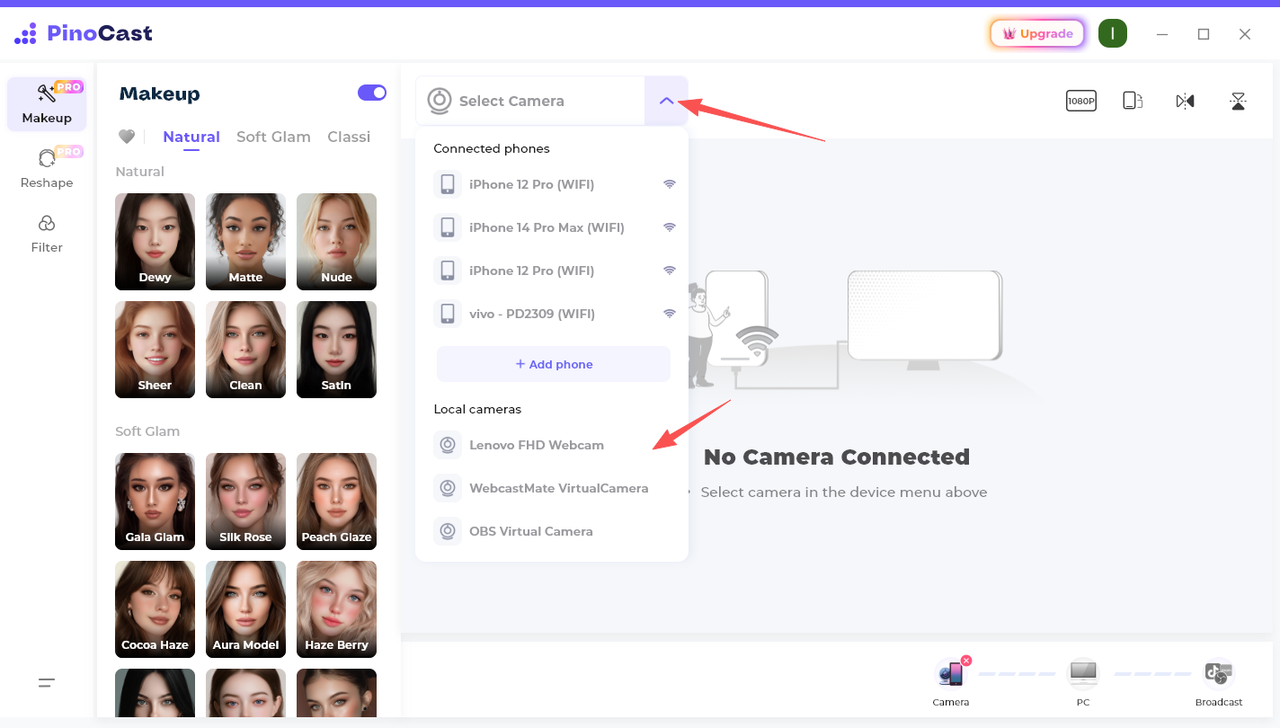
Subsequently,you can click the device List in the top-left corner to select the camera you want to connect.
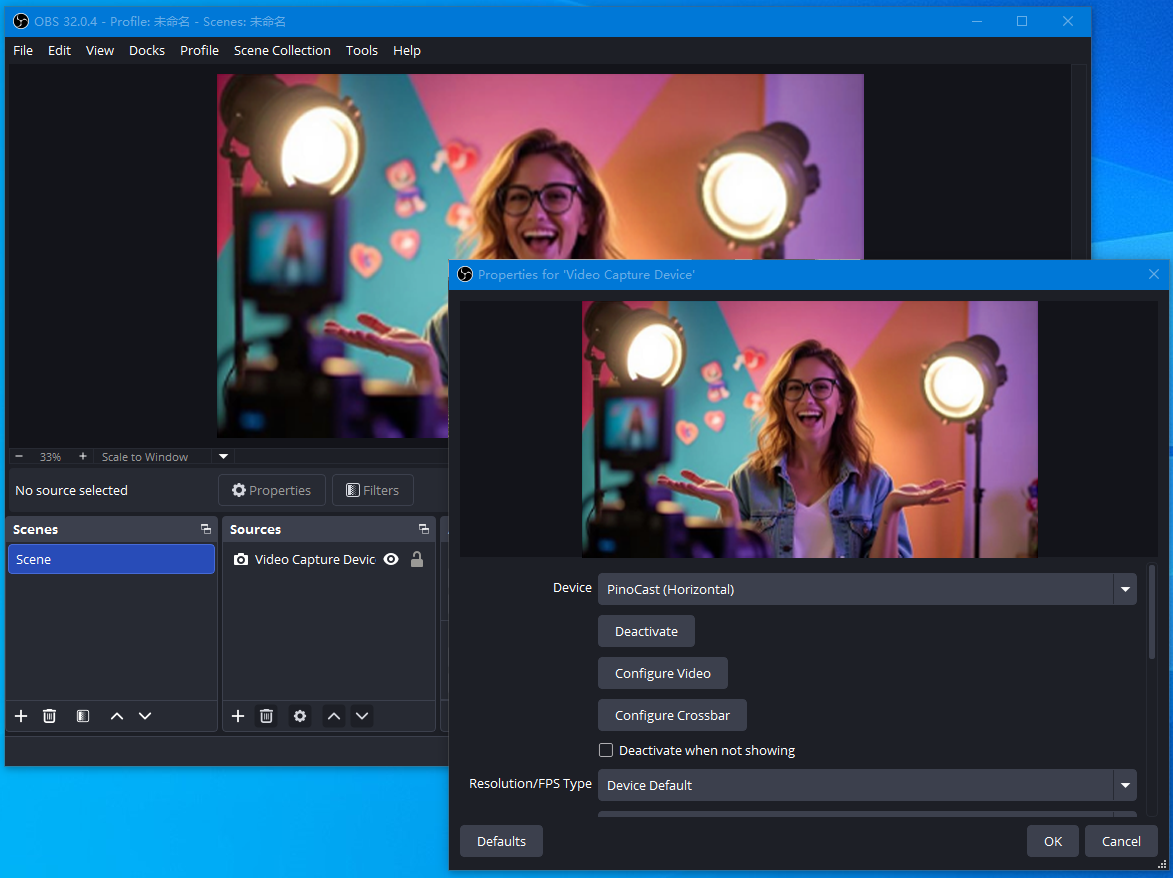
Use PinoCast in OBS
With the help of PinoCast, you can easily broadcast in OBS Studio!
Just add a "Video Capture Device" source and select PinoCast(Horizontal)
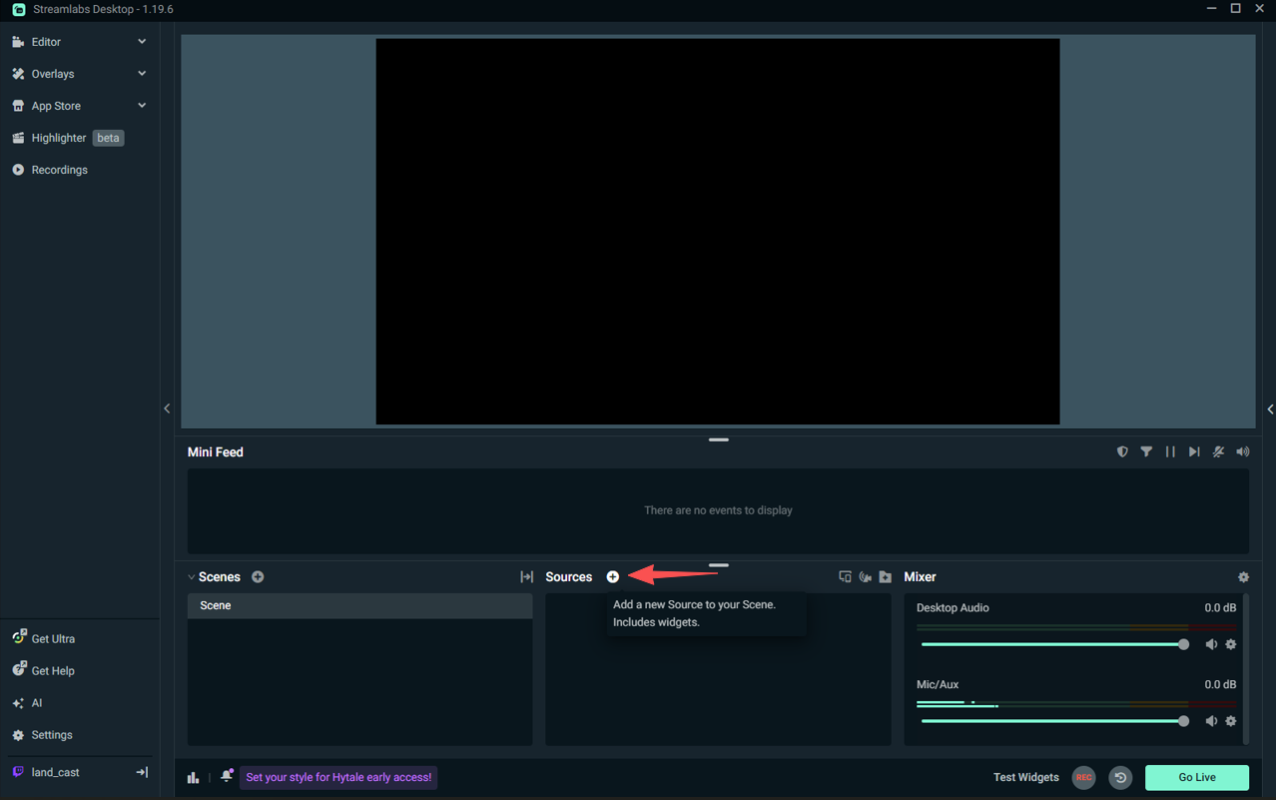
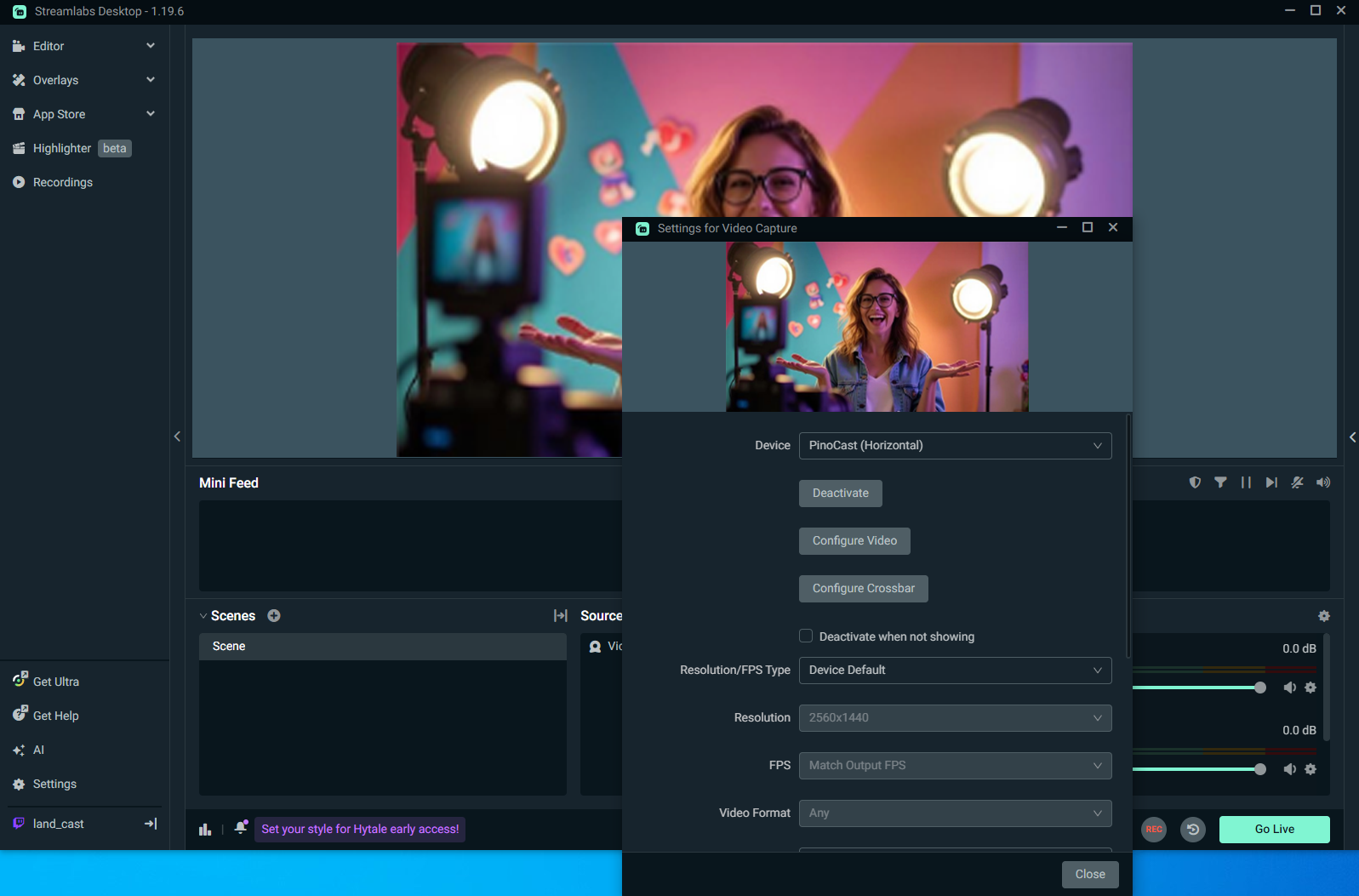
Use PinoCast in Streamlabs
Step 1: Click the plus sign (+) next to Sources in the Streamlabs editor window.
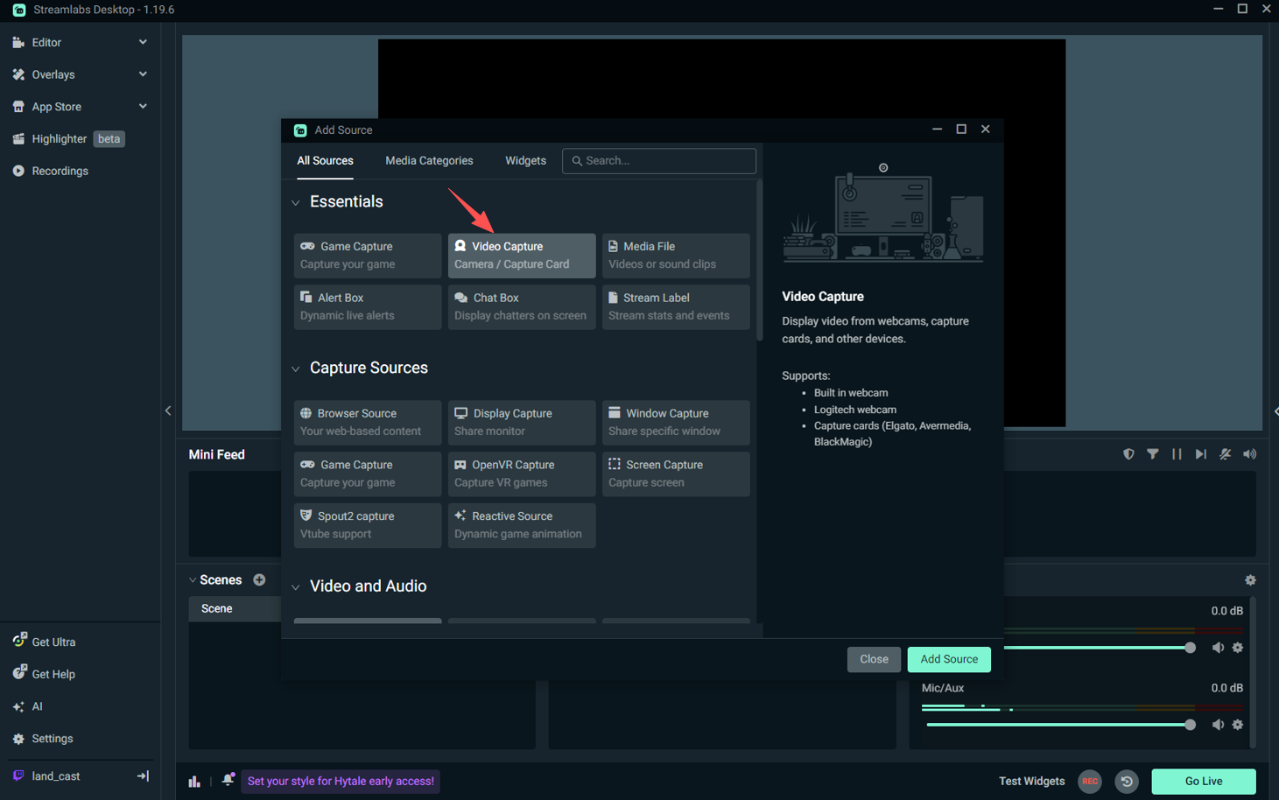
Step 2: Click on Essentials and select Video Capture Device, then Add Source.
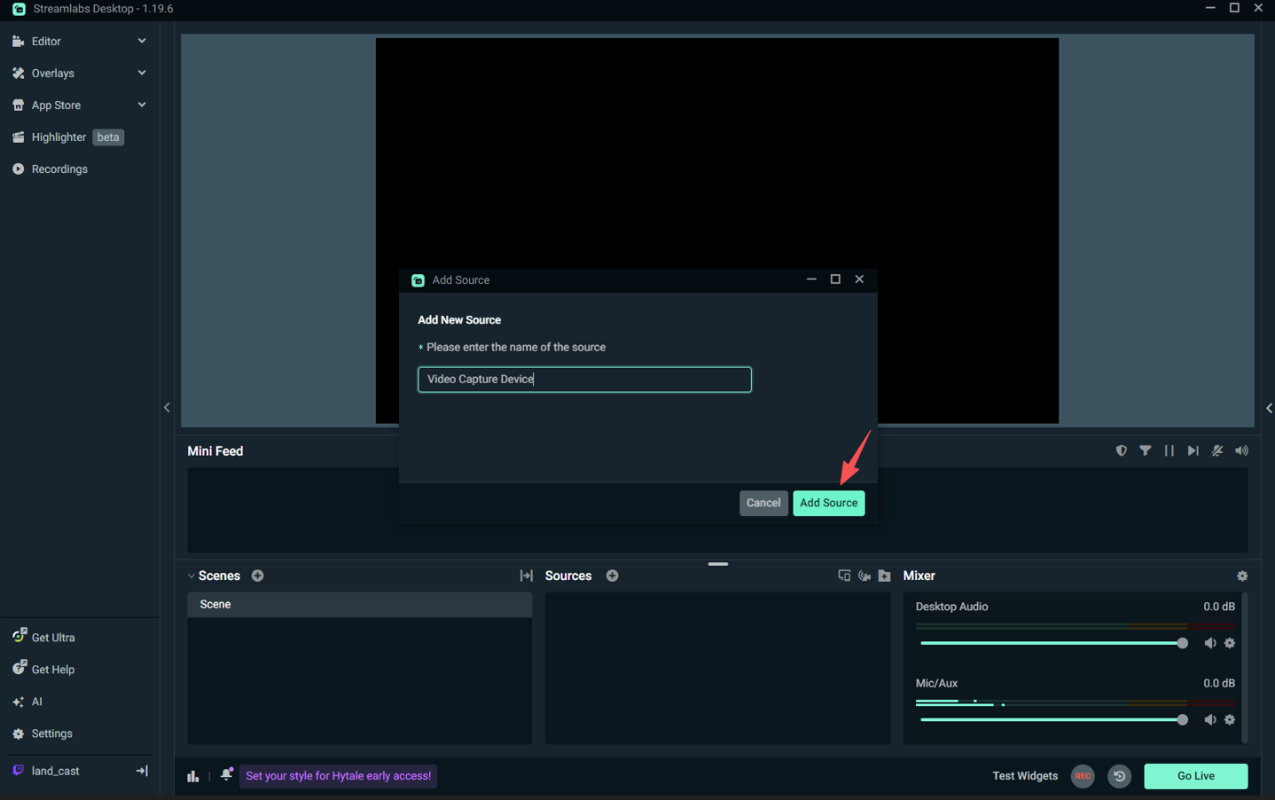
Step 3: Select Add a new source instead, name the source, and then select Add Source.
Step 4: In the next window, Select PinoCast(Horizontal) in the Device list.
Use PinoCast in Zoom
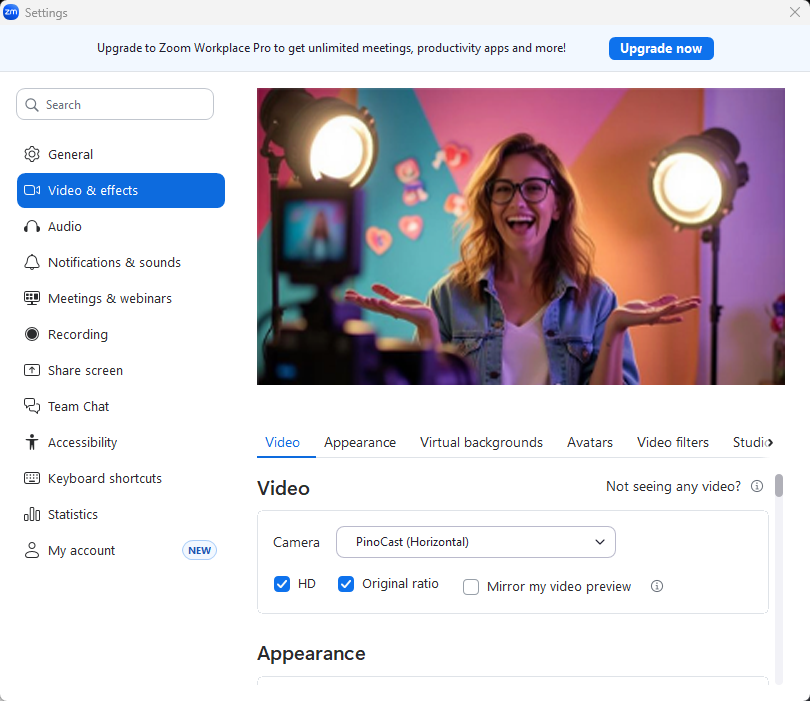
With the help of PinoCast, you can use your mobile phone as a webcam for video conferencing in the Zoom application.
Select PinoCast(Horizontal) in Zoom’s Settings > Video & effects > Camera, and don’t forget to check Enable HD if you need better
Use PinoCast in other apps
- Live streaming platforms: Twitch, TikTok, Youtube, Bigo Live...
- Online video services: Zoom, Meet, GoToMeeting...
- Publish streaming software: OBS, Streamlabs, PRISM Live Studio...
Generally, any computer live streaming software and video software that can select a hardware camera will do.














FAQs
PinoCast is only a virtual camera and does not handle audio input. You need to connect your microphone separately on your computer. The connection method is the same as when not using PinoCast.
Upgrade to PinoCast Pro to remove the watermark and unlock 4K resolution. Present a pristine, broadcast-quality image to your audience.
You can troubleshoot the issue by checking the following common problems one by one:
- When using USB-connection, ensure your phone cable is functional. (It is recommended to use the original cable, as non-original cables may cause connection failures.)
- For Android phones, make sure you have authorized the accessory for use. It is recommended to check the option "Use by default for this USB accessory."
- For iPhones, ensure you have trusted the computer on your device.
- When using a WiFi connection, make sure both mobile phone and computer are connected to the same network and that the network status is stable.
- Check Spam/Junk Folder: This is the primary reason. Email providers often mistake automated verification codes for spam. Also, check "Promotions" or "Other" tabs if you use Gmail or Outlook.
- Verify the Email Address: Double-check for typos. It’s easy to miss a dot or swap letters (e.g., gamil.com instead of gmail.com).
- Refresh Your Inbox: Sometimes the connection hangs. Try manually refreshing your mail app or browser.